Your Regional Calendar becomes the baseline for your region operations and regional budget. Below are the considerations for your calendar. These are a baseline and may not reflect everything for your region.
Begin with your season dates: starting and ending dates, dates there may be no games due to a holiday, etc.
Add in dates of activities needed to support the season
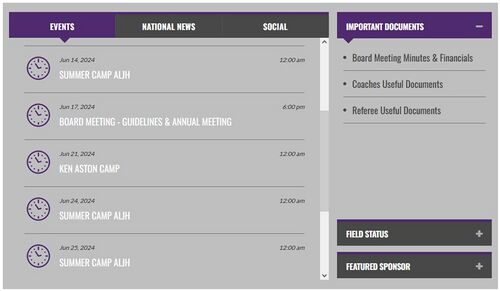
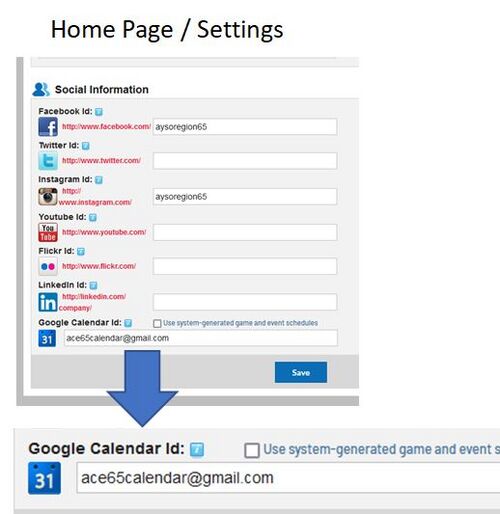
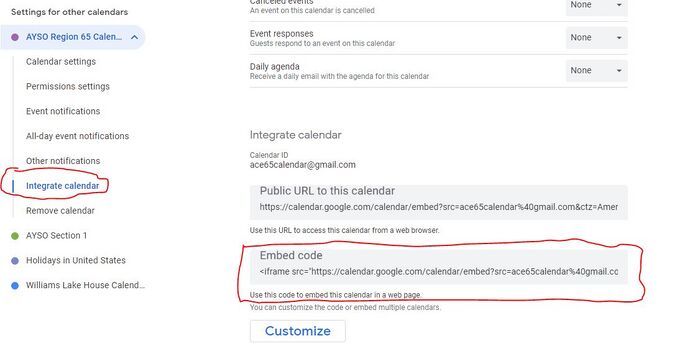
Link it to your Website (so it shows on your Home Page) This is what it will look like on your home page.This is how you link to it from your website (so it appears as above) Under Home Page - Settings, scroll down to "Social Information" and enter your Google Calendar ID In this example, the Google Calendar ID is ace65calendar@gmail.comYou can find your Google Calendar ID in the "Integrate Calendar" Setting (see below) Here is a more detailed set of instructions from Sports Connect
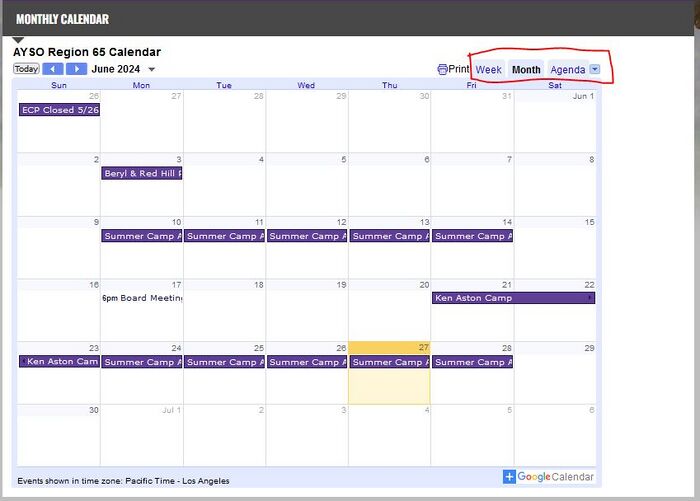
Display it as a Monthly Calendar or Agenda (or both) on your Website (in addition to the Home Page
In Google Calendar Settings, choose your Region Calendar and click "Integrate Calendar"The Calendar ID is shown above the Embed Code, under "Integrate calendar"Copy the Embed Code (HTML) and paste it into a module on your webpage.You can display it as Weekly, Monthly, or Agenda using the buttons on the calendar.
Allow your users to Subscribe
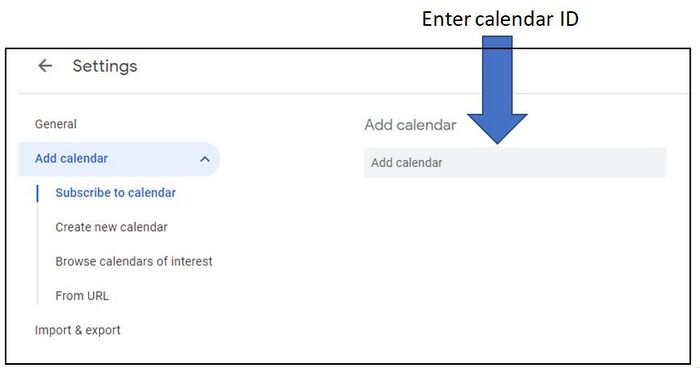
Under any User's Google Calendar Settings, click "Add Calendar", then Subscribe to Calendar