{{Credit Card Clipboard}}Reimbursements allow regions to reimbursement anyone for out of pocket expenses. Reimbursements must be enabled by the account administrator in the web browser before the the option appears in the mobile app.
Reimbursements allow regions to reimbursement anyone for out of pocket expenses. Reimbursements must be enabled by the account administrator in the web browser before the the option appears in the mobile app.
<span style="color:#0a2240;">{{Note|text='''If you are unable to process ACH Reimbursements:''' Please reach out to Divvy via the Help Center and Chat functionality and ask that they reinstate your ACH Reimbursements. Include the following in your request: "My account is one of over 400+ American Youth Soccer Organization accounts, all under a single credit umbrella. Because of this structure, we request a manual review rather than an automated one." </span><br><br>
<span style="color:#0a2240;">{{Note|text='''If you are unable to process ACH Reimbursements:''' Please reach out to Divvy via the Help Center and Chat functionality and ask that they reinstate your ACH Reimbursements. Include the following in your request: "My account is one of over 400+ American Youth Soccer Organization accounts, all under a single credit umbrella. Because of this structure, we request a manual review rather than an automated one." </span><br><br>
If still unable to activate, please send the chat conversation to [http://mailto:Finance@AYSO.org Finance@AYSO.org] and we will try to escalate on your behalf.}}<br>
If still unable to activate, please send the chat conversation to [http://mailto:Finance@AYSO.org Finance@AYSO.org] and we will try to escalate on your behalf.}}
*Ensure the person/vendor needing to be reimbursed/paid is a member of your Divvy account. If not add a [[Divvy Add and Remove Users|new user.]]
*Ensure the volunteer needing to be reimbursed/paid is a member of your Divvy account. If not add a [[Divvy Add and Remove Users|new user.]]
*Assign the user to a budget
*Assign the user to a budget
*Set the budget to greater than the reimbursement amount. This can be reduced once the reimbursement is processed if needed.
*Set the budget to greater than the reimbursement amount. This can be reduced once the reimbursement is processed if needed.
*Overall credit limit is not affected by the reimbursement amount. Credit limit can be less than the reimbursement amount because reimbursements are processed immediately upon approval outside of the credit line.
*Overall credit limit is not affected by the reimbursement amount. Credit limit can be less than the reimbursement amount because reimbursements are processed immediately upon approval outside of the credit line.
**Credit limit of $1,500 but reimbursement request for $3,000 is possible.
**Credit limit of $1,500 but reimbursement request for $3,000 is possible.
*Approval of Expenses must be in accordance with the [[Schedule of Limits]] and approved according to the Volunteer Reimbursement Approval Matrix from the [[AYSO Reference Book]] [[File:Volunteer Reimbursement Approval Matrix.png|center|frameless|778x778px]] <span style="color:#0a2240;"> <br>
== Divvy Reimbursements (Web browser) ==
== Divvy Reimbursements (Web browser) ==
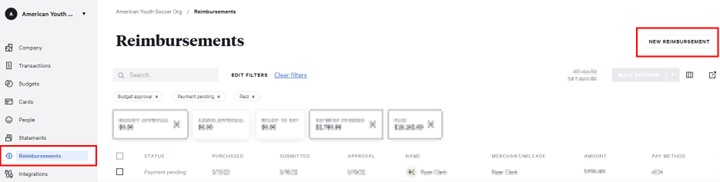
*Select '''''Reimbursements''''' from the menu on the left.
*Select '''''Reimbursements''''' from the menu on the left.
*Select reimbursement: '''Out-of-pocket'''. '''*Please do not use the built-in ''Mileage'' option.'''
*Select reimbursement: '''Out-of-pocket'''. '''*Please do not use the built-in ''Mileage'' option.'''
Line 25:
Line 22:
**For round trip, multiply the one way mileage by two.
**For round trip, multiply the one way mileage by two.
** Enter the business purpose in the details section
** Enter the business purpose in the details section
***For example: Mileage round trip from home to Section Expo and back. Carpooled with 3 other region volunteers.
***For example: Mileage round trip from home to Section Expo and back. Carpooled with 3 other region volunteers. [[File:Image_2.png|alt=|none|frame]] '''Out-of-pocket:'''
* Scroll down and select '''''New reimbursement'''''.
* Scroll down and select '''''New reimbursement'''''.
*Select reimbursement: '''Out-of-pocket. *Please do not use the built-in ''Mileage'' option.'''
*Select reimbursement: '''Out-of-pocket. *Please do not use the built-in ''Mileage'' option.''' [[File:Out of pocket.png|none|thumb|662x662px]] '''Out-of-pocket:'''
[[File:Out of pocket.png|none|thumb|662x662px]]
'''Out-of-pocket:'''
*Select the '''''Budget''''' where the reimbursement is to be applied.
*Select the '''''Budget''''' where the reimbursement is to be applied.
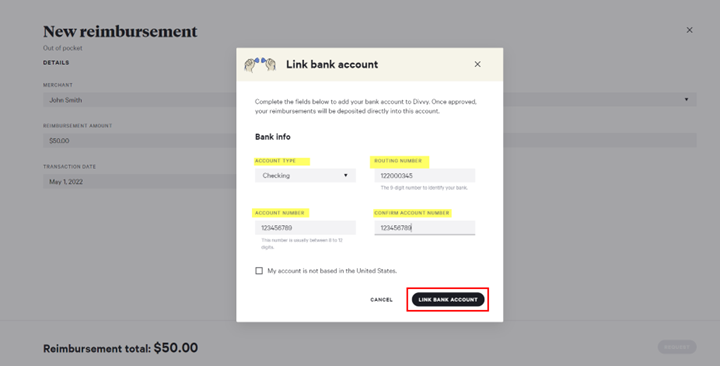
*Click '''''Link Bank Account''''' and enter the required information for ACH reimbursement.
*Click '''''Link Bank Account''''' and enter the required information for ACH reimbursement. [[File:Reimbursement 8.png|none|thumb|649x649px]]
[[File:Reimbursement 8.png|none|thumb|649x649px]]
*Enter '''''Merchant Name''''', '''''Reimbursement Amount''''', and '''''Transaction Date'''''.
*Enter '''''Merchant Name''''', '''''Reimbursement Amount''''', and '''''Transaction Date'''''.
Line 71:
Line 55:
*Enter '''''Business Purpose''''' and add '''''Receipts (scroll down).'''''
*Enter '''''Business Purpose''''' and add '''''Receipts (scroll down).'''''
== <span style="color:#0a2240;">Categorizing Divvy Reimbursements in QuickBooks ==
[[File:Reimbursement 9.png|none|thumb|611x611px]]
<span style="color:#0a2240;">
When Divvy processes the ACH for the reimbursement, this is NOT a credit card charge, so should not be categorized as 2150 Divvy Credit Card Payable. Instead you will need to categorize it based on the reimbursements paid.
Navigate to the Divvy Reimbursements Section of Divvy and look for the matching $ amount in the "Batch Amount" column. You will see all of the payments and can then review the categories this reimbursement aligns to.
==For assistance:==
Always start by reaching out to Finance@ayso.org. For many questions, we can help and you won't have to navigate the Divvy Help Section.
Occassionally, we will ask that you do reach out to Divvy for questions we can't see the information on.
Reimbursements allow regions to reimbursement anyone for out of pocket expenses. Reimbursements must be enabled by the account administrator in the web browser before the the option appears in the mobile app.
If you are unable to process ACH Reimbursements: Please reach out to Divvy via the Help Center and Chat functionality and ask that they reinstate your ACH Reimbursements. Include the following in your request: "My account is one of over 400+ American Youth Soccer Organization accounts, all under a single credit umbrella. Because of this structure, we request a manual review rather than an automated one."
If still unable to activate, please send the chat conversation to Finance@AYSO.org and we will try to escalate on your behalf.
Ensure the volunteer needing to be reimbursed/paid is a member of your Divvy account. If not add a new user.
Assign the user to a budget
Set the budget to greater than the reimbursement amount. This can be reduced once the reimbursement is processed if needed.
Overall credit limit is not affected by the reimbursement amount. Credit limit can be less than the reimbursement amount because reimbursements are processed immediately upon approval outside of the credit line.
Credit limit of $1,500 but reimbursement request for $3,000 is possible.
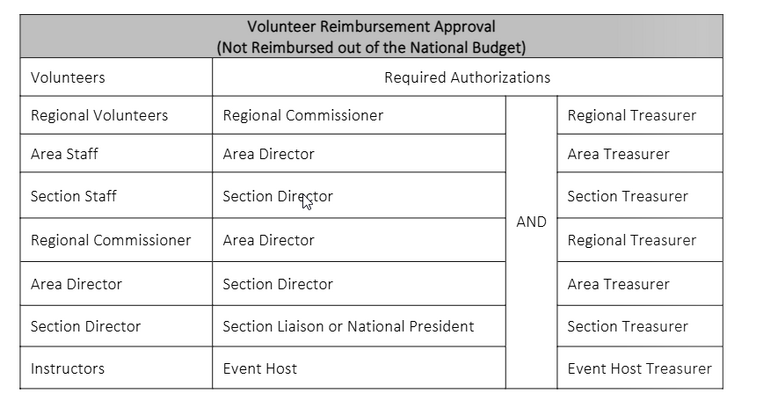
Approval of Expenses must be in accordance with the Schedule of Limits and approved according to the Volunteer Reimbursement Approval Matrix from the AYSO Reference Book
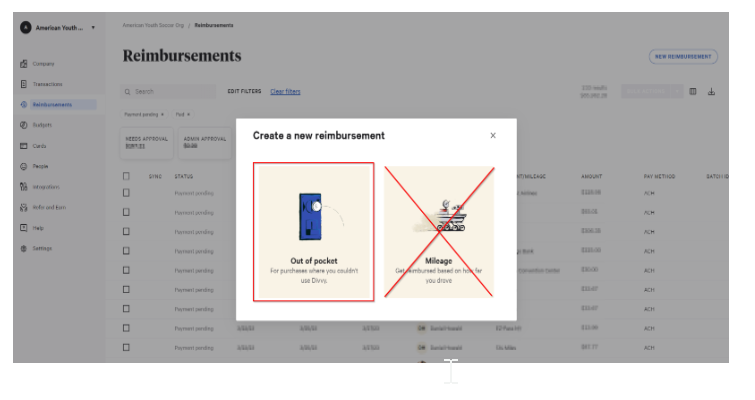
Select reimbursement: Out-of-pocket. *Please do not use the built-in Mileage option.
For mileage, calculate total miles multiplied by approved amount per mile (see Schedule of Limits).
Enter the total amount to be reimbursed.
Use a screen shot from a maps app from point A to point B as the "receipt"
For round trip, multiply the one way mileage by two.
Enter the business purpose in the details section
For example: Mileage round trip from home to Section Expo and back. Carpooled with 3 other region volunteers. Out-of-pocket:
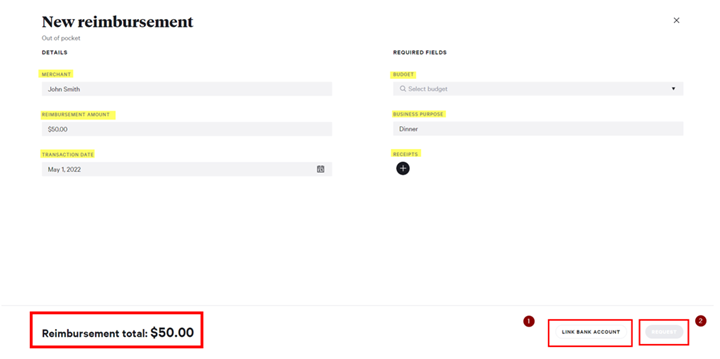
Under Details, enter Merchant Name, Reimbursement Amount, and Transaction Date.
Select the Budget where the reimbursement is to be applied.
Enter Business Purpose and add Receipts.
Select Expense Category, Department, and enter a Description of item. (Not shown below).
Click Link Bank Account and enter the required information for ACH reimbursement.
Click Request.
Divvy Reimbursements (Mobile-App)
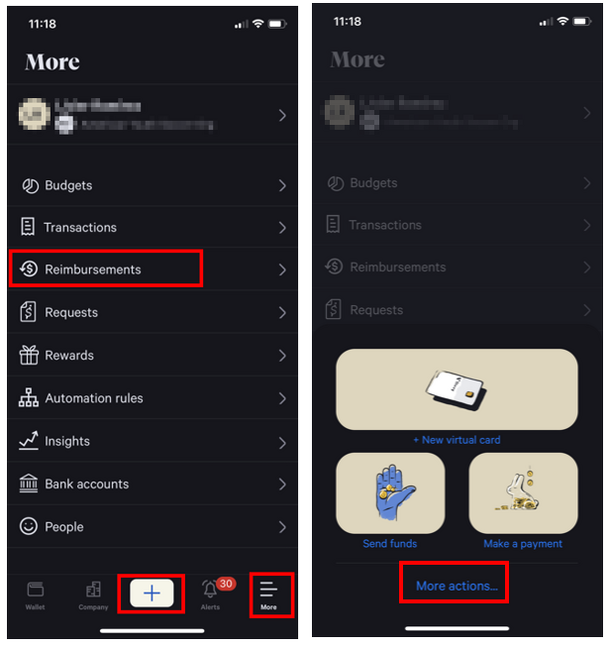
From Navigation Menu, click on Add icon or click More icon on the right and select Reimbursements.
Click on More Actions.
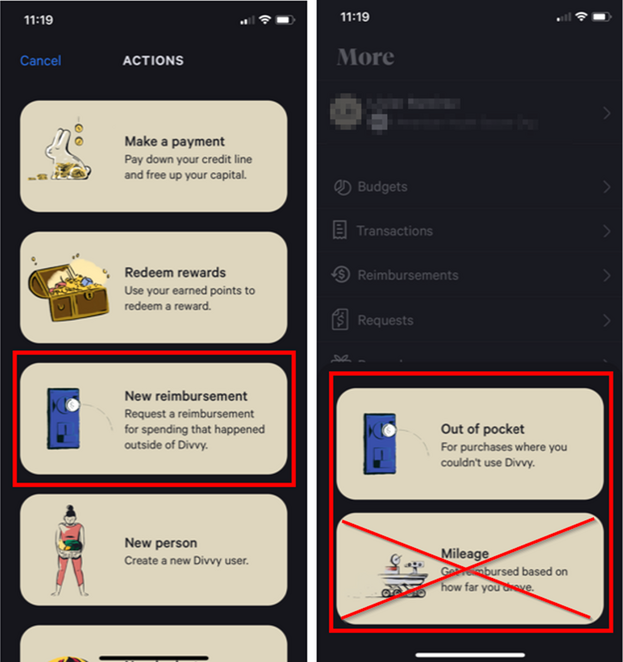
Scroll down and select New reimbursement.
Select reimbursement: Out-of-pocket. *Please do not use the built-in Mileage option.Out-of-pocket:
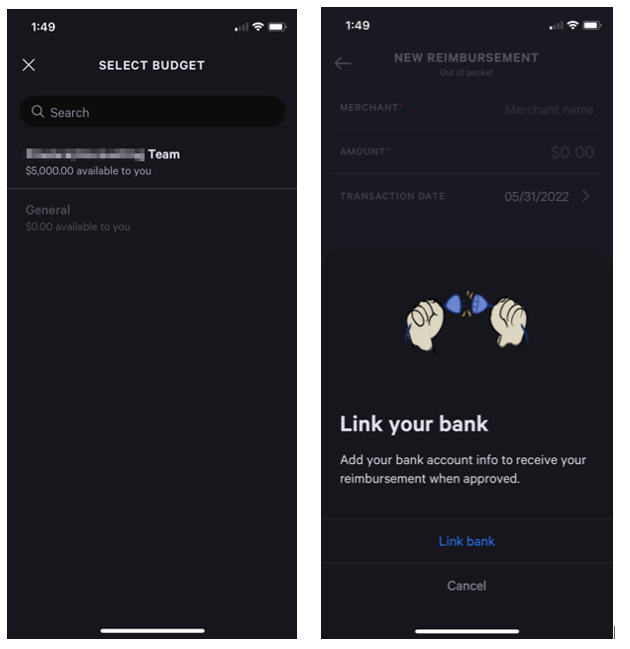
Select the Budget where the reimbursement is to be applied.
Click Link Bank Account and enter the required information for ACH reimbursement.
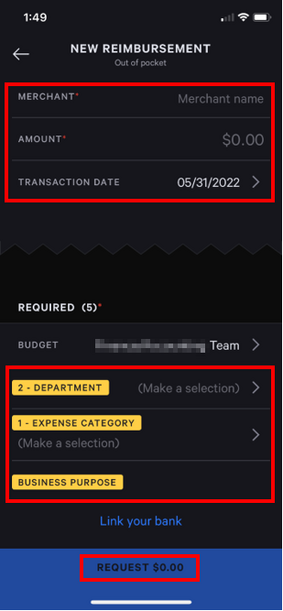
Enter Merchant Name, Reimbursement Amount, and Transaction Date.
Select Expense Category and Department.
Enter Business Purpose and add Receipts (scroll down).
Click Request.
Categorizing Divvy Reimbursements in QuickBooks
When Divvy processes the ACH for the reimbursement, this is NOT a credit card charge, so should not be categorized as 2150 Divvy Credit Card Payable. Instead you will need to categorize it based on the reimbursements paid.
Navigate to the Divvy Reimbursements Section of Divvy and look for the matching $ amount in the "Batch Amount" column. You will see all of the payments and can then review the categories this reimbursement aligns to.
For assistance:
Always start by reaching out to Finance@ayso.org. For many questions, we can help and you won't have to navigate the Divvy Help Section.
Occassionally, we will ask that you do reach out to Divvy for questions we can't see the information on.
E-mail: help@getdivvy.com Chat: Chat with Divvy Support, using the Help Center -> Connect with us.
AYSO is always here to help with your region's finances. You can either Email us at finance@ayso.org or Schedule a Meeting with our team for one on one support. See the Support page for other ways of getting help. Can't find a topic? Send us your needs or suggestions at support@ayso.org.