
Printing Player Forms as a Coach: Difference between revisions
From AYSO Wiki
Content deleted Content added
No edit summary |
Jeffbailey (talk | contribs) m Use proper numbering formatting |
||
| Line 1: | Line 1: | ||
Player Application forms are now printed in the Association Platform for each team. As a coach, you will want to print these forms for each player on your team and have these forms available at each game. |
Player Application forms are now printed in the Association Platform for each team. As a coach, you will want to print these forms for each player on your team and have these forms available at each game. |
||
# Log into your Account on your Region’s website. |
|||
| ⚫ | |||
| ⚫ | |||
| ⚫ | |||
# You will automatically be taken to your MY Account on the Association Platform in a new browser tab. |
|||
| ⚫ | |||
| ⚫ | |||
| ⚫ | |||
# Selecting Team info will take you to the team’s roster on the Association Platform. |
|||
| ⚫ | |||
| ⚫ | |||
| ⚫ | |||
| ⚫ | |||
| ⚫ | |||
| ⚫ | |||
| ⚫ | |||
| ⚫ | |||
6. Selecting Team info will take you to the team’s roster on the Association Platform. |
|||
| ⚫ | |||
| ⚫ | |||
| ⚫ | |||
| ⚫ | |||
| ⚫ | |||
| ⚫ | |||
| ⚫ | |||
| ⚫ | |||
| ⚫ | |||
| ⚫ | |||
| ⚫ | |||
| ⚫ | |||
{{Support Stack Association}} |
{{Support Stack Association}} |
||
Latest revision as of 01:04, 27 June 2026
Player Application forms are now printed in the Association Platform for each team. As a coach, you will want to print these forms for each player on your team and have these forms available at each game.
- Log into your Account on your Region’s website.
- On the left-hand side click on Volunteer.
- Click on the link “Go to AYSO” for each team in which you are coaching or managing. NOTE: If the link does not display, your roster has not been posted.
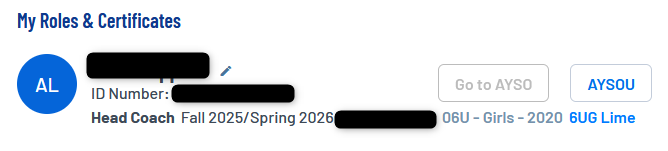
- You will automatically be taken to your MY Account on the Association Platform in a new browser tab.
- Choose Team Info beside the name of the team in which you wish to print Player Applications Forms.
- Selecting Team info will take you to the team’s roster on the Association Platform.
- Check the boxes next to the player rows. You can select the box next to Select at the top to check all of the boxes.
- Click on the Print button below the team roster.
- Click Player Application Forms
- Once clicked a new window will open and download a PDF containing forms in one document.
- Print the file.
- NOTE: Be sure to disable the pop-up blockers in your browser. If the file does not display across the bottom of the browser window, please check your computer’s downloads folder.
- Once finished downloading, you can simply log out of the Association Platform.


Stack Association Support is here to help. Email them at aysosupport@stacksports.com or call 800-808-7195. See the Support page for other ways of getting help. Can't find a topic? Send us your needs or suggestions at support@ayso.org.